Menu editor
Why this matters
The menu editor lets you customize what appears in the sidebar and in what order — and, optionally, differently per role. Useful when:
- You want the most-used modules at the top.
- Your support team only needs to see Cases and Contacts.
- You want to hide admin modules from non-admins.
- You want to add shortcuts to external pages.
Get to the editor
Sidebar → Settings → Menu editor.
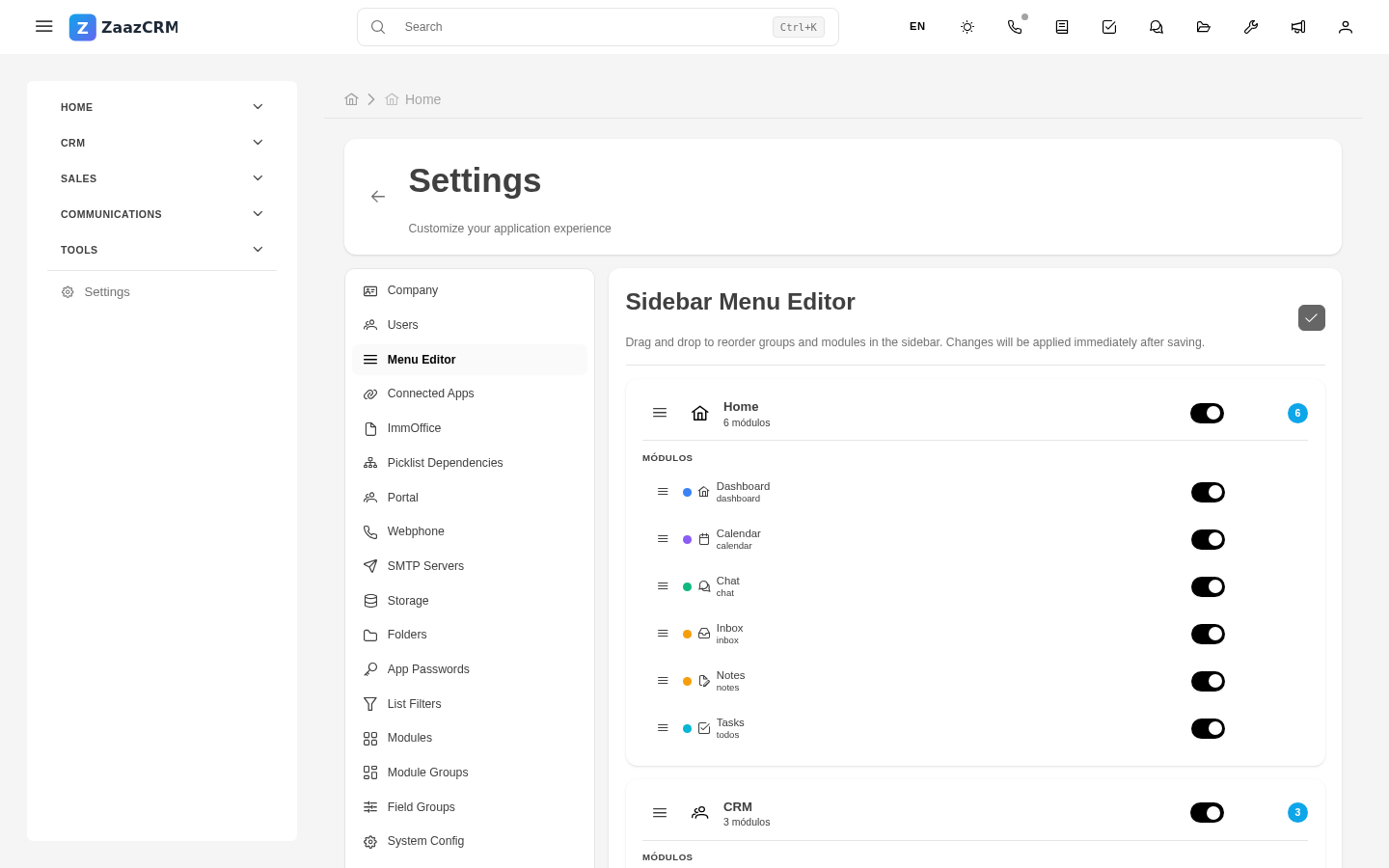
Basic operations
- Reorder — drag groups or modules up/down.
- Hide — eye icon.
- Change group — drag between groups.
- Rename label — change text without changing technical key.
- Create new group.
Per-role menus
Each role can have its own menu. By default everyone uses the base menu, but you can create variants:
- Create menu for role → pick role.
- Adjust what appears.
- Save.
External shortcuts
Add to the menu:
- External URLs — open in new tab.
- Custom internal pages.
Watch out for
- Don't hide modules for security — only affects visibility, not permissions.
- Per-role menus can diverge a lot — keep to a minimum.
- Don't add too many shortcuts.