Invoices
Why this matters
The invoice is the formal billing document: what the customer owes for delivered products or services. While the quote is a proposal, the invoice is the bill. ZaazCRM tracks who paid, when, how much, and how — without you having to keep it on a separate sheet.
Create an invoice
Two ways:
From an accepted quote (the normal path): 1. Open the quote → Convert to invoice button. 2. ZaazCRM copies the line items, totals, customer. 3. You confirm the issue date and tax info → Save.
Manual (when there's no prior quote): 1. Sidebar → Invoices → Create. 2. Pick customer. 3. Add line items, taxes, total — same as a quote. 4. Save.
The invoice gets a folio (for example FAC076). This folio is legal — don't change it afterward.
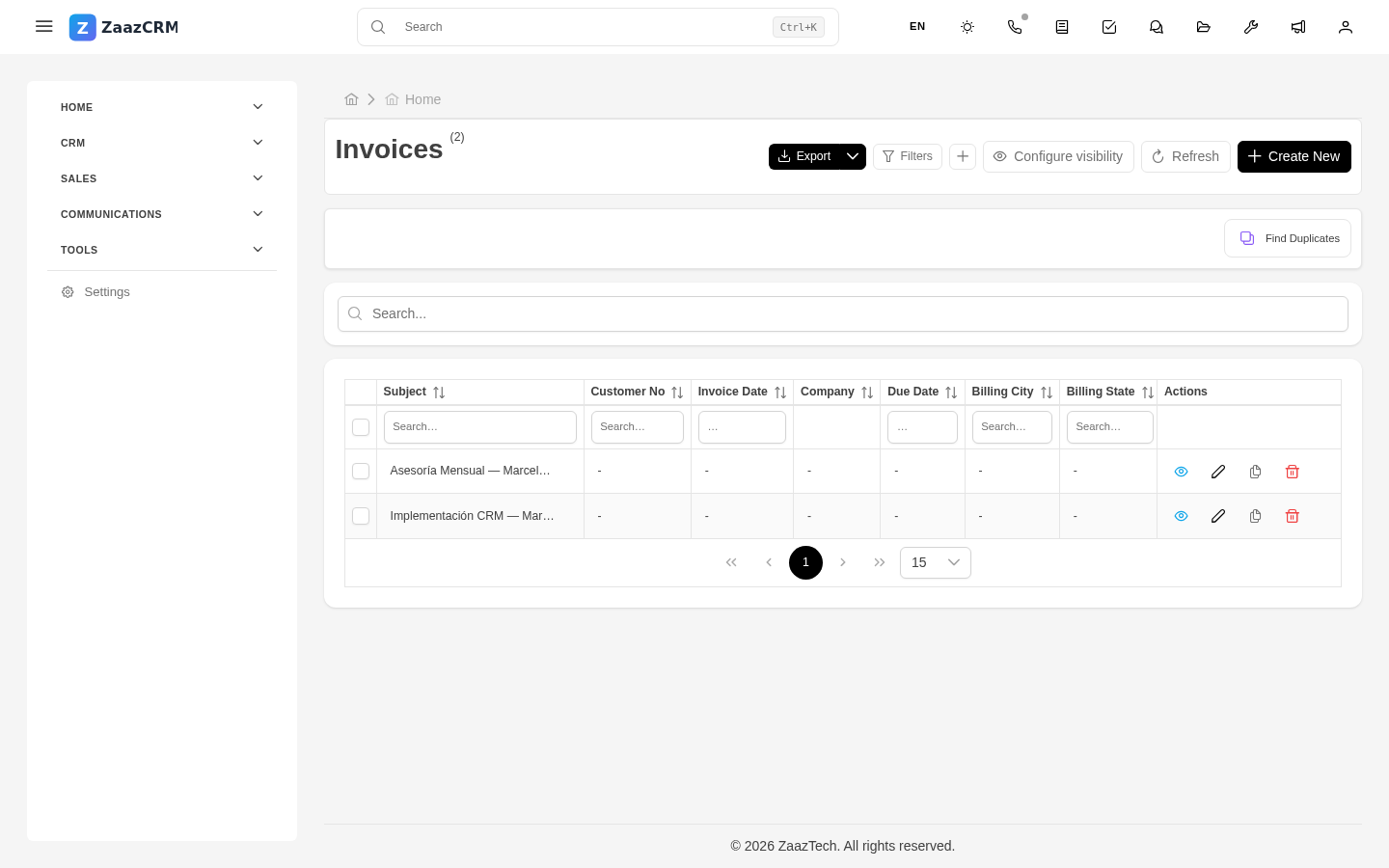
Invoice statuses
- Draft — assembled but not issued or sent.
- Issued — generated with assigned fiscal folio, ready to send.
- Sent — delivered to the customer.
- Partially paid — you received some payment but a balance remains.
- Paid — the customer cleared everything.
- Overdue — payment date passed without being settled.
- Cancelled — voided (with documented reason).
Record a payment
- Open the invoice → Record payment button (or the Payments tab).
- Fill in:
- Amount — how much you received (can be partial).
- Payment date.
- Method — transfer, card, cash, cheque, deposit.
- Reference — transfer number, card authorization, etc.
- Optional Notes.
- Save.
ZaazCRM recalculates the balance automatically and, if the payment covers everything, moves the invoice to Paid.
Send the invoice to the customer
Same as quotes: PDF button to generate, or Send by email to send directly from ZaazCRM with an email template. The invoice PDF is saved in the customer's folder.
Cancel an invoice
You only cancel an issued invoice if there was a legitimate error (wrong tax data, wrong amount, service never delivered):
- Open the invoice → Edit.
- Change Status to Cancelled.
- Fill in Cancellation reason — required for audit.
- Save.
A cancelled invoice is not deleted. It stays visible in reports but doesn't count in active totals. If you need to re-invoice, create a new one.
Collections reports
From Reports you can see:
- Overdue invoices (how much you're owed and for how long).
- Collections for the month/quarter/year.
- Collections by sales rep or by customer.
Watch out for
- Don't edit an issued invoice. If data changes, cancel and create a new one. Editing an already-issued invoice can have fiscal implications depending on your jurisdiction.
- Overdue status doesn't apply automatically unless your administrator set up a workflow. Review periodically.
- Tax data comes from the customer at the time of issue. If the customer later updates their tax ID or fiscal address, old invoices keep the original data — correct as of the issue date.
- Don't record the same payment twice. Before marking a payment, check the Payments tab in case someone on the team already recorded it.