PDF templates (creation)
Why this matters
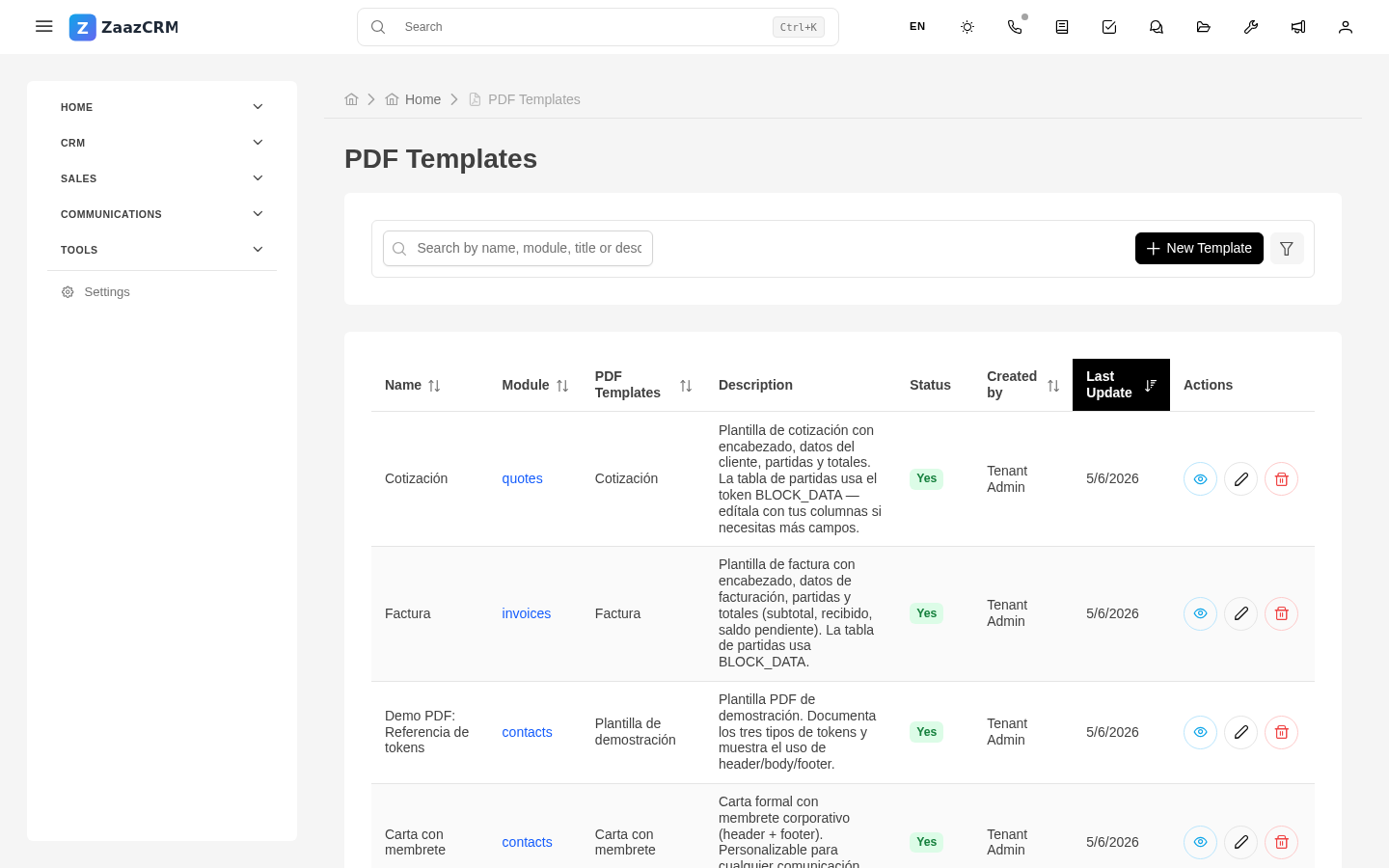
PDF templates are the pre-built documents that produce your quotes, invoices, contracts, receipts. As an administrator, you create and maintain them.
Create a template
- Sidebar → Settings → PDF templates → Create.
- Fill in:
- Name ("ES Quote", "EN Invoice", "Services Contract").
- Module it's generated on.
- Language.
- Save and enter the editor.
Editor structure
- Header — logo and company info on every page.
- Body — main content with tokens.
- Footer — page number, legal address.
Each area is edited with rich HTML.
Dynamic tokens
To insert data:
{{contact_name}}{{invoice_folio}}{{date}}{{line_items_table}}— automatic line items table.{{total}}
Editor → Insert token shows available ones.
Conditional blocks
{{#if has_discount}}...{{/if}}{{#each line_items}}...{{/each}}
Custom CSS
Editor → Custom CSS tab for typography, colors, margins. mPDF (the engine) has limitations — not all CSS3 works.
Test the template
- Preview with a sample record.
- Verify tokens substitute.
- Review format at different content sizes.
Associate templates with modules
Associations tab → add the modules where it'll be available. Mark as default if you want it suggested.
Watch out for
- mPDF has quirks. CSS attribute selectors are ignored. Use class or ID selectors.
- Don't modify in production without testing.
- Version critical templates.
Where to next
- Email templates (creation).
- Workflows — automate generation.