Profiles
Why this matters
A profile is a set of granular permissions that stacks on top of the user's role. While the role defines "what type of user you are", the profile defines "what specific things you can do" (see invoices, edit email templates, export reports).
A user can have several profiles — without you creating a new role for every combination.
Permission structure
Three dimensions:
- Module — which module it applies to.
- Action — view, create, edit, delete.
- Field optional — field-level restrictions.
Create a profile
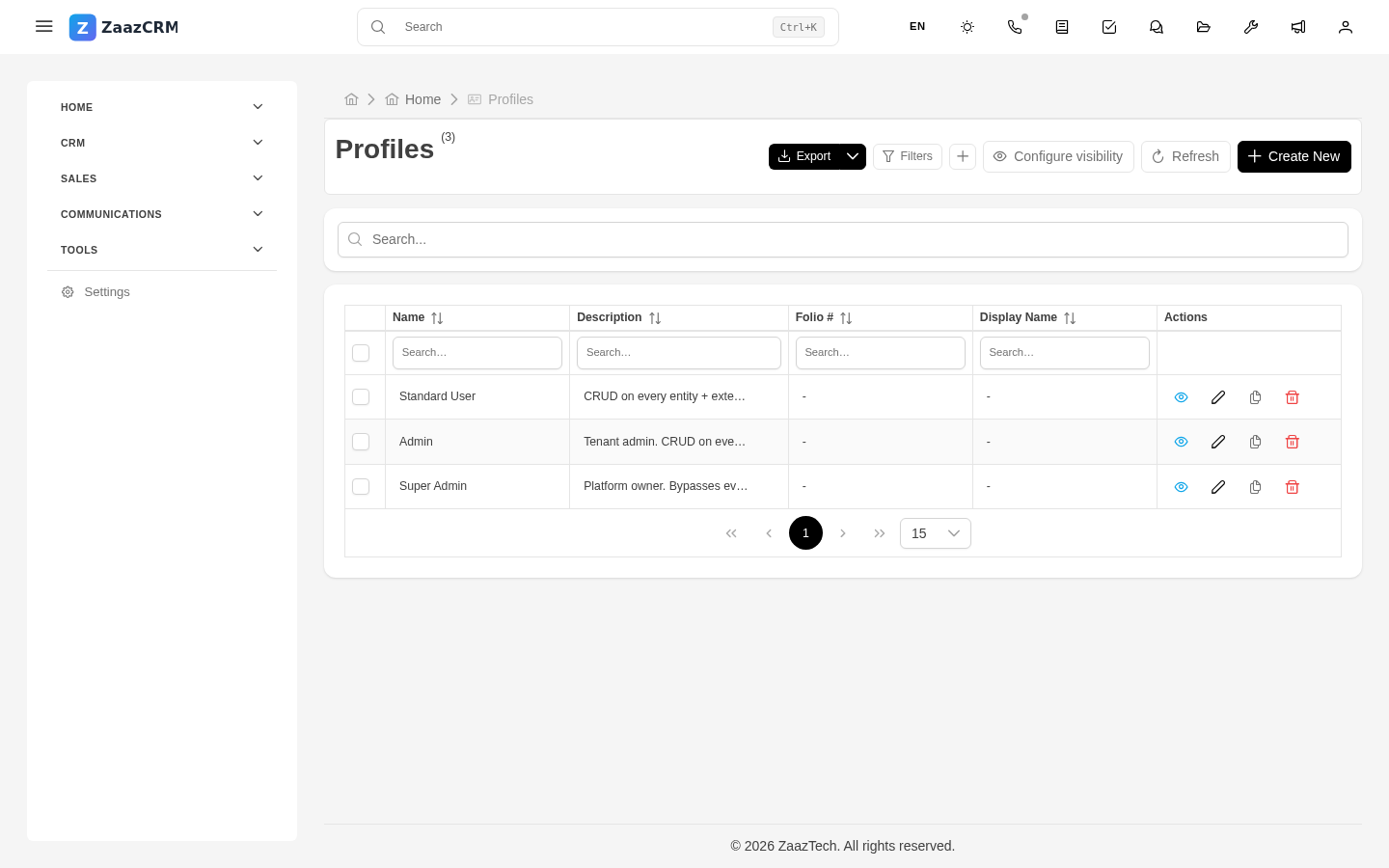
- Sidebar → Settings → Profiles → Create.
- Fill in: name, description.
- In Module permissions, check: View, Create, Edit, Delete.
- In Field permissions (optional): Invisible, Read-only, Write.
- Save.
Assign a profile to a user
User → Profiles tab → Add profile. Permissions stack with the role's.
Assign a profile to a role
Role → Profiles tab → Add profile. Every user with that role gets it automatically.
Common patterns
- Collections — Invoices, Payments, Collections reports.
- Marketing — Web Forms, email templates, campaigns.
- Reports — create and share custom reports.
- Read-only — every module in View mode.
Combine role + profiles
Watch out for
- Conflicting permissions between role and profile — the more permissive wins.
- Changes to profiles affect EVERYONE who has them.
- Orphan profiles take up space — review periodically.
Where to next
- Modules — which modules to allow/restrict.
- Visibilities — control fields by context.