Calendar
Why this matters
The calendar is where appointments, reminders, and deadlines live: customer meetings, lead close dates, contract renewals, team events. Connecting it to CRM records means that when a customer has an appointment next week, the calendar knows without you having to repeat the date in two places.
Get to the calendar
Sidebar → Calendar. You land on the current month view with your events.
Create an event
- Click on a day/time in the calendar (or Create event button).
- Fill in:
- Short, descriptive title.
- Date and time, Duration (or All day).
- Type — appointment, deadline, reminder, internal meeting.
- Customer or Case (optional).
- Participants.
- Reminder — when to notify.
- Save.
If you turned on Add video call, ZaazCRM creates the Jitsi link automatically.
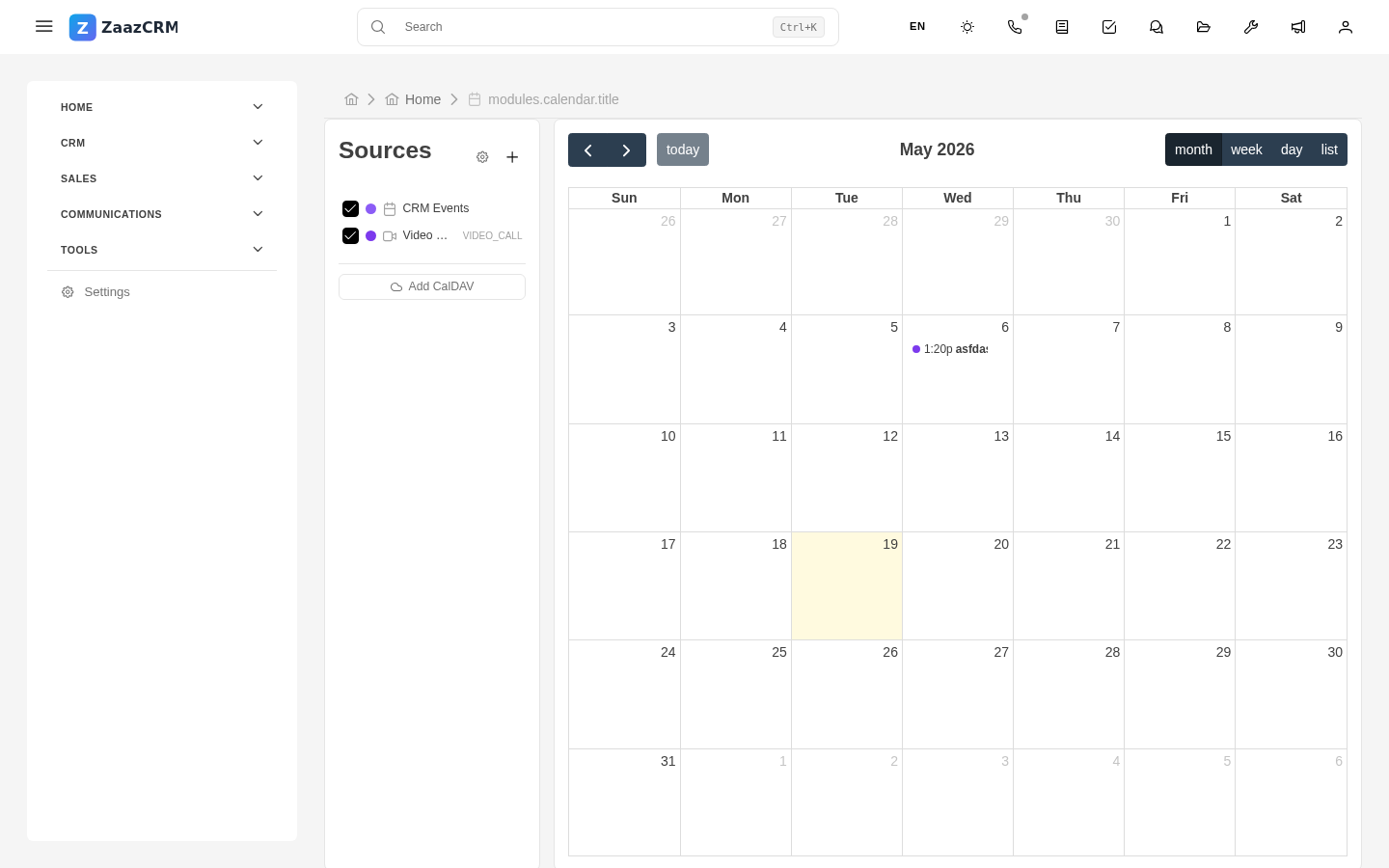
Calendar views
- Month — general view.
- Week — more detail.
- Day — minute by minute.
- Agenda (list) — events in chronological list.
Events linked to customers
When an event is linked to a customer or case, you see it from both sides:
- On the calendar with a link to the record.
- On the customer or case, Calendar tab.
Deadlines and reminders
For important dates:
- Type: Deadline.
- Turn on Escalated reminders (1 week, 3 days, 1 day before).
- Mark Critical if applicable.
Shared calendars
Team or function calendars can appear on top of yours, distinguished by color. Toggle in the side panel.
Sync with Google Calendar / Outlook
If your company has sync configured, ZaazCRM events appear in your personal Google Calendar or Outlook.
Watch out for
- Time zones matter. ZaazCRM uses your profile's time zone.
- Don't overdo reminders. Reserve escalation for critical deadlines.
- Don't delete past customer events. History is useful for reports.
Where to next
- Dashboards and widgets — calendar widget on the dashboard.
- Notifications — how reminders are delivered.