File manager
Why this matters
Every active customer generates files: signed contracts, payment proofs, technical specs, error screenshots, project documentation. The ZaazCRM File manager is where all those files live, organized in a folder structure parallel to contacts and companies. It's not Dropbox — it's something simpler and more connected to the CRM.
Get to the file manager
Three paths:
- Sidebar → Files — global view of the full tree.
- From a contact → Files tab — you see only that contact's folder.
- From a case or company → Files tab — you see only its folder.
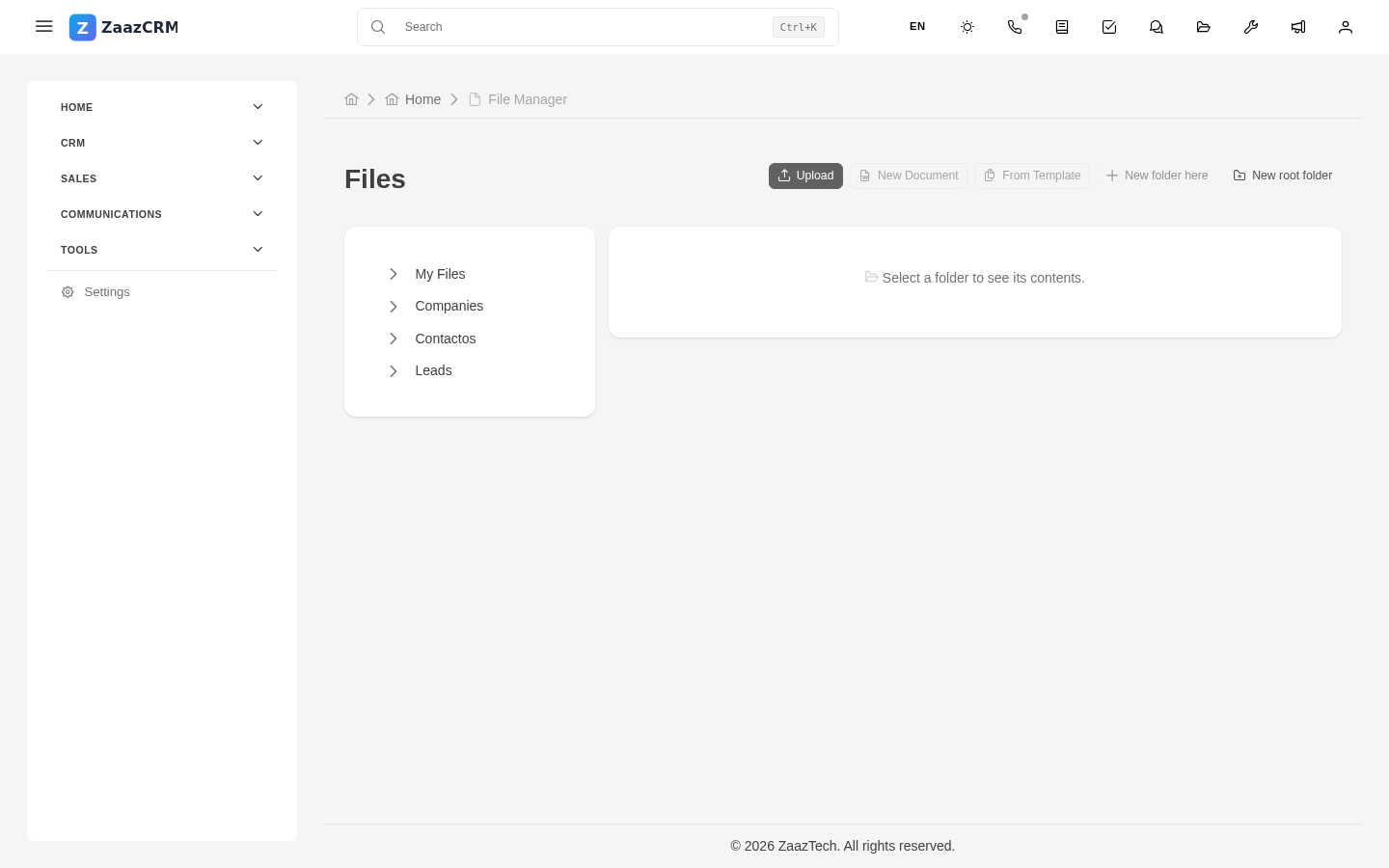
Upload files
Three paths:
- Drag and drop — from your desktop, drag files into the upload zone.
- Upload button — opens the system file picker.
- From an email — when receiving an email with attachments, Save to contact files button.
File types and sizes
ZaazCRM accepts any file type: PDF, JPG, PNG, DOCX, XLSX, ZIP, etc. Max size per file: typically 50 MB. To upload more, ask your administrator.
Organize folders
- Create folders — New folder button.
- Move files — drag between folders.
- Rename — right-click → Rename.
- Delete — right-click → Delete (soft-delete, restorable).
View and download
- Preview: click on a file.
- Edit (Office): Edit with OnlyOffice — opens the editor in the browser.
- Download: file menu → Download.
Share files with customers
ZaazCRM doesn't expose files to the customer directly — you control that by sending the file by email or by customer portal link (if your company uses the portal).
Search for files
- By name: search field above the manager.
- By content (PDF, DOCX): if indexed.
- By customer: ZaazCRM's global search finds them.
Watch out for
- Don't save the same file in two different folders. It causes confusion.
- Don't upload personal data without need. The manager keeps what you upload, accessible to the team.
- Deleting is soft-delete, but restoration is not forever. An administrator can restore in the first 30 days typically.
Where to next
- Auto-folders — the structure ZaazCRM maintains without you having to do anything.
- OnlyOffice — edit Office documents in the browser.