Contacts
Why this matters
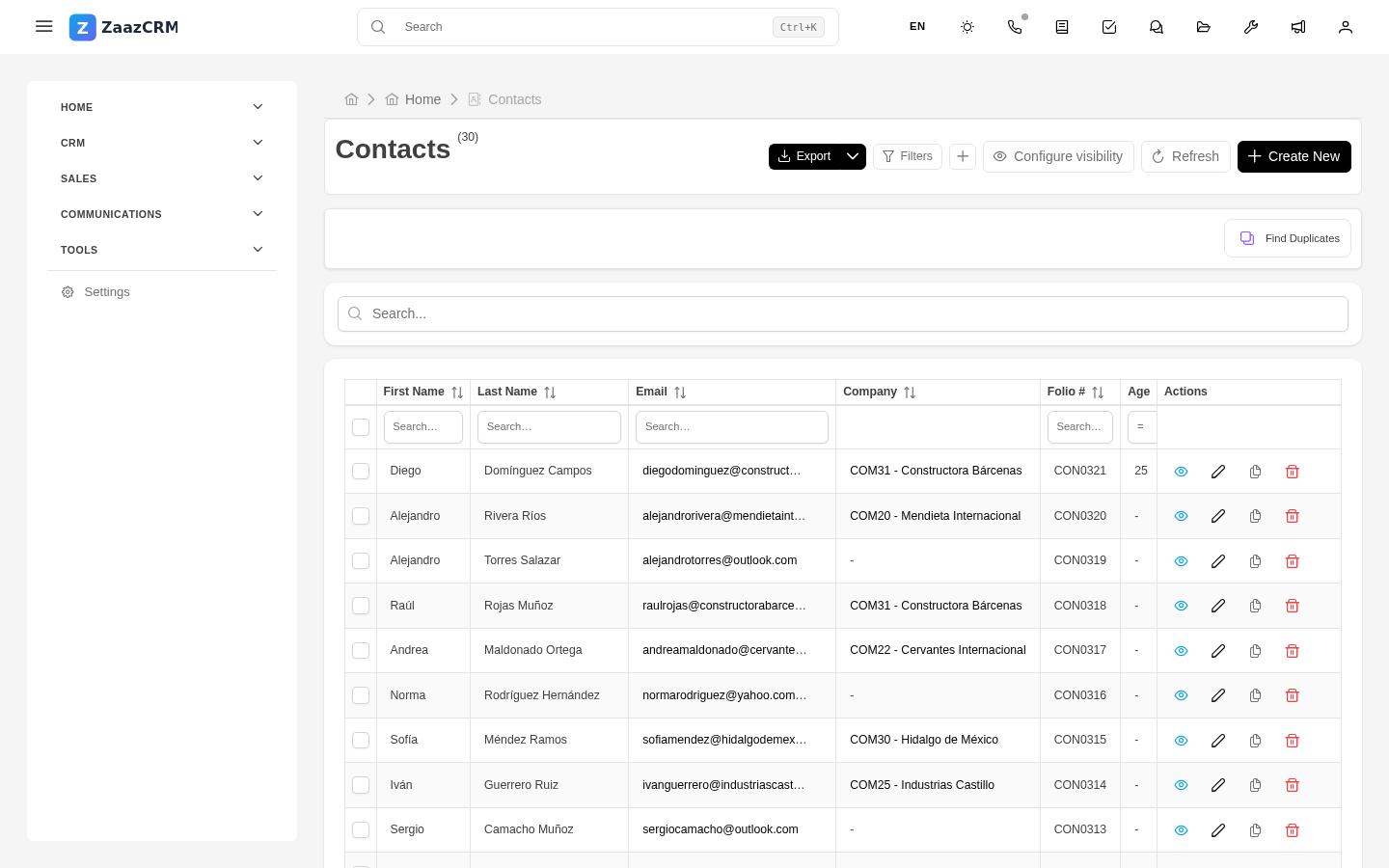
The contact is the center of all information in ZaazCRM. Every customer, prospect, supplier, or person your business relates to is a contact. From the contact's record connect their quotes, invoices, support cases, emails, calls, and any interaction. If the contact record is incomplete or duplicated, everything else gets fragile — it's worth spending the time to get it right the first time.
Create a contact
- In the sidebar, open Contacts.
- Click Create (upper-right corner).
- Fill in at least the required fields (marked with a red asterisk):
- First name(s) and Last name(s) — exactly as the contact goes by.
- Email — the contact's, not yours. It's the basis for sending them communications.
- Phone — include the country code (
+1,+52, etc.). - Fill in the fields that apply (company, title, address, contact source, preferred language).
- Click Save.
The system assigns a folio automatically (for example CON251). It's the short identifier you reference the contact by in conversations, quotes, and emails.
Find a contact
Three paths, depending on what you know:
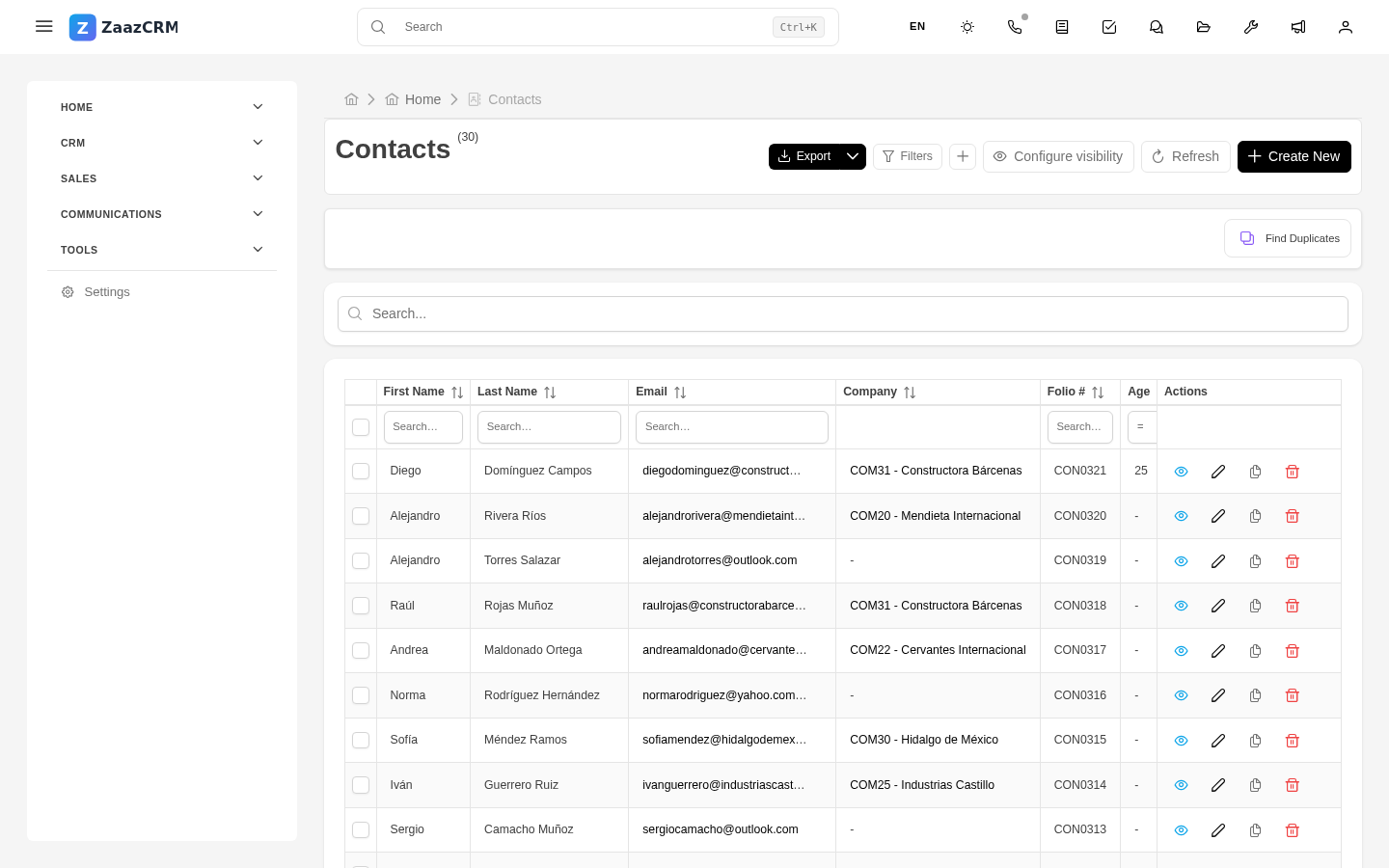
- By name or email: global search (magnifying glass in the top bar) or the search inside the Contacts list.
- By folio: global search. Type the full folio (
CON251) or just the trailing digits. - By phone or any other field: global search, if it's configured as a searchable field. Your administrator decides which fields go into search.
If the search returns two or more records with the same name, it's worth reviewing — it might be a duplicate. More in Find duplicates.
The contact detail view
When you open a contact you find:
- Summary — photo, full name, folio, email, phone, side column with quick actions.
- Personal data — date of birth, official ID, etc.
- Company and title — if the contact belongs to a customer company.
- Address — current and/or historical.
And below, the related tabs, where most day-to-day work happens:
- Cases — every open or closed support ticket for the contact.
- Leads — active sales opportunities with this contact.
- Quotes and Invoices — financial history.
- Emails — every email sent or received associated with this contact.
- Calls — phone history.
- Files — documents saved in the contact's folder.
- Comments — internal team notes (the client doesn't see them).
- Activity timeline — who did what, and when.
Edit a contact
Click Edit (upper-right of the detail), modify what you need, and Save. Every modification is recorded in the activity timeline — useful for audit if a question later comes up about who changed what.
Delete a contact
Deleting is final from the user's view but recoverable by an administrator. ZaazCRM uses soft-delete: the contact disappears from your list but stays in a system trash. Only delete when you're sure — if it was a mistake, ask your administrator to restore it from Settings → Trash.
Watch out for
- Duplicates are problem #1. Before creating a new contact, search first. It's common for someone on the team to already have registered them with a name variant or from another occasion.
- Don't put two people in one record. If two people work at the same customer company, create two separate contacts — both linked to the same company.
- The contact's email is not yours. It sounds obvious, but it happens on initial inquiries: the team sometimes uses their own email "so we don't lose it." That confuses things later when quotes or notifications get sent — always capture the contact's email.
- Don't confuse contact with lead. A contact is the person; a lead is a sales opportunity with that person. The same person can have several leads over time.